> ## Documentation Index
> Fetch the complete documentation index at: https://docs.blocks.team/llms.txt
> Use this file to discover all available pages before exploring further.
# GitHub
## Getting Started
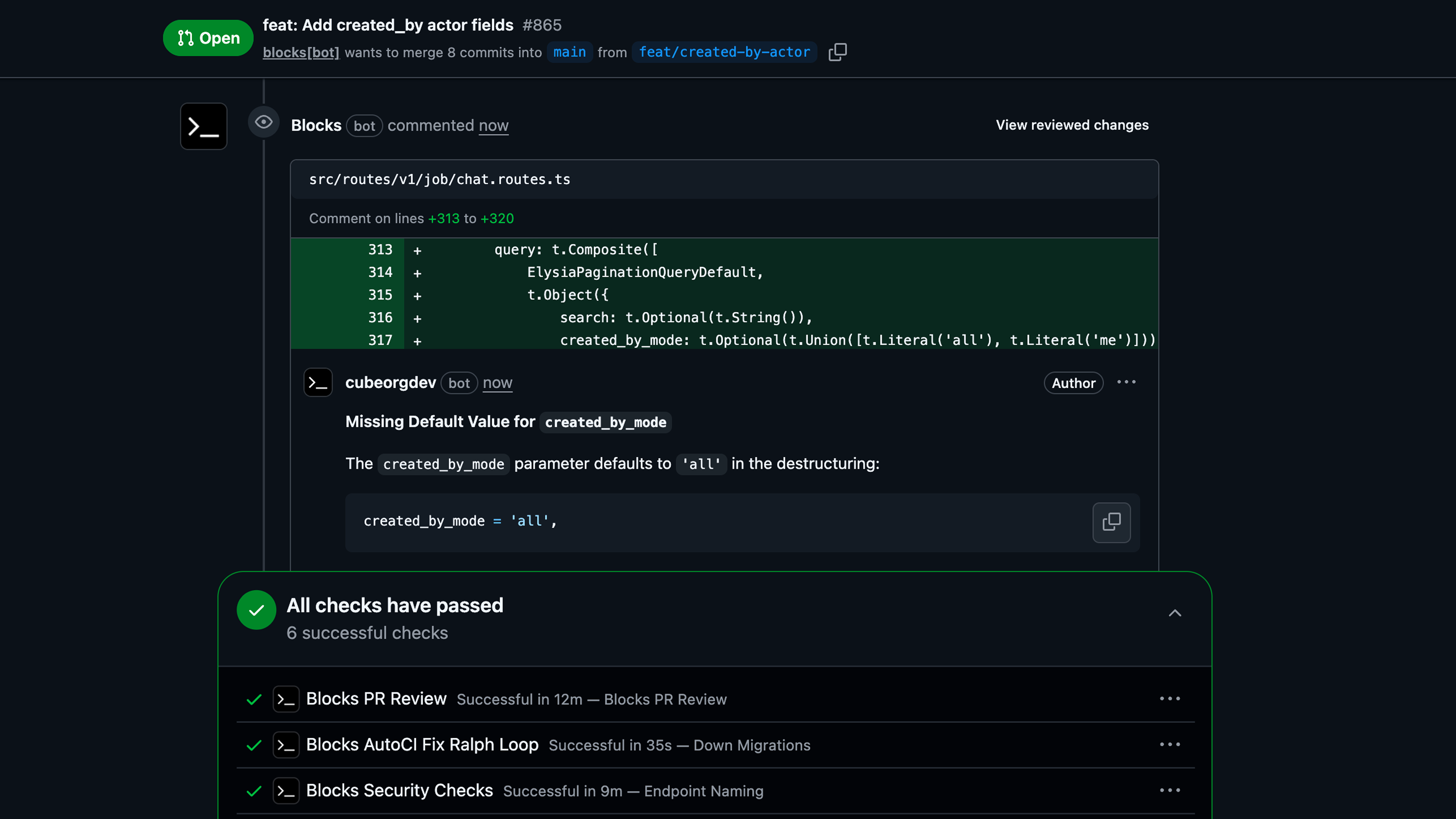
Interact with Blocks on GitHub by mentioning `@blocks` in any issue, PR, or PR review comment with your request. Manage issues, answer questions, review PRs, make changes, create tickets, and more.
 Delegate your request to a specific agent by mentioning the agent keyword in a slash command. Example: /claude, /codex, /gemini, /kimi. If none are mentioned, the request will default to your default agent. To change it: Dashboard → Agents → Set as default agent.
## What Blocks Can Do
Blocks can help you with a variety of tasks on GitHub:
* **Answer Questions**: Ask Blocks about an issue or PR
* **Update Issues**: Request changes to an issue such as additional details with context from your codebase
* **Create New Issues**: Ask Blocks to create additional tickets based on your requirements
* **Implementation**: Ask Blocks to create a PR from an issue
* **PR Review**: Ask Blocks to review a PR. Optionally, include context for what to look out for
* **Make Changes**: Ask Blocks to make changes to an open PR
### Making a Request
Simply mention `@blocks` in any GitHub issue, PR, or PR review comment followed by your request:
```
@blocks what does this function do?
```
```
@blocks can you implement this issue?
```
```
@blocks review this PR, focus on any potential runtime errors
```
```
@blocks can you change this be a class instead?
```
**Session Context**: Responding in a GitHub pull request review thread will continue in the same session, preserving all context from the conversation. Creating a new comment on an issue, PR, or PR file will create a fresh session with no prior context.
### Plan Mode
Start a new session in Plan Mode to create an implementation plan before making changes:
```
@blocks /plan implement user authentication with OAuth
```
Plan Mode allows you to collaborate on the approach before any code is written. Learn more about [Plan Mode](/using-blocks/features/plan-mode).
Plan Mode must be started with a new session and cannot be entered once implementation has begun.
### Blocks Response Process
1. **Acknowledgment**: Blocks will add 👀 (eye) emojis to indicate it has seen your message
2. **Dashboard Link**: Blocks responds with a link to the dashboard where you can track progress
3. **Progress Updates**: Blocks provides a realtime snippet about what it is currently working on
4. **Final Message**: Blocks responds with a final message which summarizes what it did
## Bot Invocations
By default, Blocks ignores mentions from GitHub bot users. If you want to allow bots to invoke Blocks and create sessions, enable **Bot Invocations** in **Dashboard → Settings → GitHub**.
## Best Practices
* **Be Specific**: Provide clear and detailed requests to get the best results
* **Use Context**: Reference specific issues, sections of the code, or requirements when relevant
* **Check Progress**: Use the dashboard link to monitor Blocks' work on your request
* **Follow Up**: You can continue the conversation by mentioning `@blocks` again with additional questions or clarifications
## Next Steps
New to Blocks? Check out the [Getting Started guide](/using-blocks/getting-started) to learn the basics.
Learn more about:
* [Plan Mode](/using-blocks/features/plan-mode) for collaborative planning
* [Skills](/using-blocks/features/skills) for reusable prompts
* [Multi-Repo Support](/using-blocks/features/multi-repo-support) for working across repositories
Delegate your request to a specific agent by mentioning the agent keyword in a slash command. Example: /claude, /codex, /gemini, /kimi. If none are mentioned, the request will default to your default agent. To change it: Dashboard → Agents → Set as default agent.
## What Blocks Can Do
Blocks can help you with a variety of tasks on GitHub:
* **Answer Questions**: Ask Blocks about an issue or PR
* **Update Issues**: Request changes to an issue such as additional details with context from your codebase
* **Create New Issues**: Ask Blocks to create additional tickets based on your requirements
* **Implementation**: Ask Blocks to create a PR from an issue
* **PR Review**: Ask Blocks to review a PR. Optionally, include context for what to look out for
* **Make Changes**: Ask Blocks to make changes to an open PR
### Making a Request
Simply mention `@blocks` in any GitHub issue, PR, or PR review comment followed by your request:
```
@blocks what does this function do?
```
```
@blocks can you implement this issue?
```
```
@blocks review this PR, focus on any potential runtime errors
```
```
@blocks can you change this be a class instead?
```
**Session Context**: Responding in a GitHub pull request review thread will continue in the same session, preserving all context from the conversation. Creating a new comment on an issue, PR, or PR file will create a fresh session with no prior context.
### Plan Mode
Start a new session in Plan Mode to create an implementation plan before making changes:
```
@blocks /plan implement user authentication with OAuth
```
Plan Mode allows you to collaborate on the approach before any code is written. Learn more about [Plan Mode](/using-blocks/features/plan-mode).
Plan Mode must be started with a new session and cannot be entered once implementation has begun.
### Blocks Response Process
1. **Acknowledgment**: Blocks will add 👀 (eye) emojis to indicate it has seen your message
2. **Dashboard Link**: Blocks responds with a link to the dashboard where you can track progress
3. **Progress Updates**: Blocks provides a realtime snippet about what it is currently working on
4. **Final Message**: Blocks responds with a final message which summarizes what it did
## Bot Invocations
By default, Blocks ignores mentions from GitHub bot users. If you want to allow bots to invoke Blocks and create sessions, enable **Bot Invocations** in **Dashboard → Settings → GitHub**.
## Best Practices
* **Be Specific**: Provide clear and detailed requests to get the best results
* **Use Context**: Reference specific issues, sections of the code, or requirements when relevant
* **Check Progress**: Use the dashboard link to monitor Blocks' work on your request
* **Follow Up**: You can continue the conversation by mentioning `@blocks` again with additional questions or clarifications
## Next Steps
New to Blocks? Check out the [Getting Started guide](/using-blocks/getting-started) to learn the basics.
Learn more about:
* [Plan Mode](/using-blocks/features/plan-mode) for collaborative planning
* [Skills](/using-blocks/features/skills) for reusable prompts
* [Multi-Repo Support](/using-blocks/features/multi-repo-support) for working across repositories