> ## Documentation Index
> Fetch the complete documentation index at: https://docs.blocks.team/llms.txt
> Use this file to discover all available pages before exploring further.
# Slack
## Getting Started
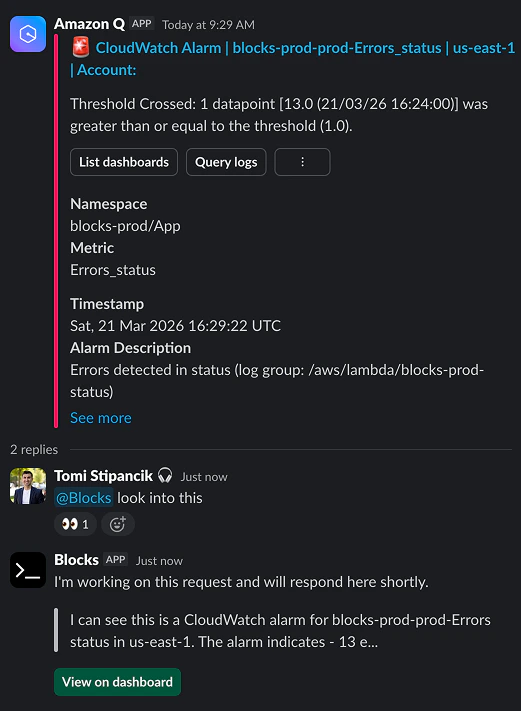
Interact with Blocks on Slack by mentioning `@blocks` in any channel with your request. Answer questions, create issues from threads, search channel history, delegate technical work, and more.
 Blocks cannot be mentioned in external connection channels or in DMs between Slack users.
### Add Blocks to a channel
Blocks can only respond in or access channels that it is a member of. You can also message the Blocks app directly. To add Blocks to a channel, simply mention `@blocks` in the desired channel.
Delegate your request to a specific agent by mentioning the agent keyword in a slash command. Example: /claude, /codex, /gemini, /kimi. If none are mentioned, the request will default to your default agent. To change it: Dashboard → Agents → Set as default agent.
## What Blocks Can Do
Blocks can help you with a variety of tasks on Slack:
* **Answer Questions**: Ask Blocks about a thread, technical details, search for information, and more
* **Delegate Work**: Ask Blocks to begin implementation or to create a ticket from a thread
* **Status Updates**: Ask Blocks about the status of a feature, summaries of recent commits, open tickets, and more
Blocks can work across many repos in a single request
### Making a Request
Simply mention `@blocks` in any Slack channel where Blocks is a member followed by your request:
```
@blocks provide me a github diff url for the changes since last deployment
```
```
@blocks can you create a linear ticket based on this convo?
```
```
@blocks summarize all the commits over the last 3 days across all repos, provide links
```
**Session Context**: Responding in a Slack message thread will continue in the same session, preserving all context from the conversation. Mentioning Blocks outside of a thread will create a fresh session with no prior context.
### Plan Mode
Start a new session in Plan Mode to create an implementation plan before making changes:
```
@blocks /plan add caching layer to the API
```
Plan Mode allows you to collaborate on the approach before any code is written. Learn more about [Plan Mode](/using-blocks/features/plan-mode).
Plan Mode must be started with a new session and cannot be entered once implementation has begun.
### Messaging Blocks Privately
You can have a private, one-on-one conversation with Blocks directly in Slack using the Agent feature.
1. In the top right of Slack, click **Add an Agent** and select **Blocks**
2. Blocks will appear in your top right — click the **Blocks** button to open a private conversation
3. Start chatting directly with Blocks
Blocks cannot be mentioned in external connection channels or in DMs between Slack users.
### Add Blocks to a channel
Blocks can only respond in or access channels that it is a member of. You can also message the Blocks app directly. To add Blocks to a channel, simply mention `@blocks` in the desired channel.
Delegate your request to a specific agent by mentioning the agent keyword in a slash command. Example: /claude, /codex, /gemini, /kimi. If none are mentioned, the request will default to your default agent. To change it: Dashboard → Agents → Set as default agent.
## What Blocks Can Do
Blocks can help you with a variety of tasks on Slack:
* **Answer Questions**: Ask Blocks about a thread, technical details, search for information, and more
* **Delegate Work**: Ask Blocks to begin implementation or to create a ticket from a thread
* **Status Updates**: Ask Blocks about the status of a feature, summaries of recent commits, open tickets, and more
Blocks can work across many repos in a single request
### Making a Request
Simply mention `@blocks` in any Slack channel where Blocks is a member followed by your request:
```
@blocks provide me a github diff url for the changes since last deployment
```
```
@blocks can you create a linear ticket based on this convo?
```
```
@blocks summarize all the commits over the last 3 days across all repos, provide links
```
**Session Context**: Responding in a Slack message thread will continue in the same session, preserving all context from the conversation. Mentioning Blocks outside of a thread will create a fresh session with no prior context.
### Plan Mode
Start a new session in Plan Mode to create an implementation plan before making changes:
```
@blocks /plan add caching layer to the API
```
Plan Mode allows you to collaborate on the approach before any code is written. Learn more about [Plan Mode](/using-blocks/features/plan-mode).
Plan Mode must be started with a new session and cannot be entered once implementation has begun.
### Messaging Blocks Privately
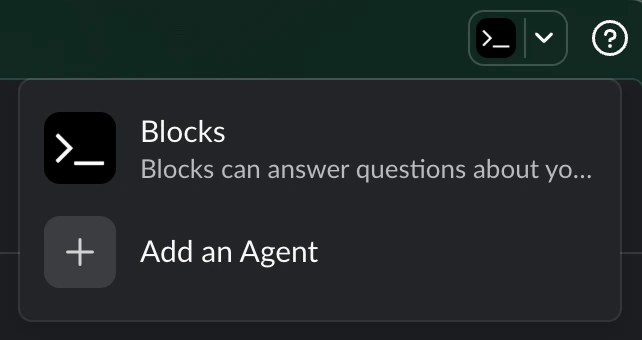
You can have a private, one-on-one conversation with Blocks directly in Slack using the Agent feature.
1. In the top right of Slack, click **Add an Agent** and select **Blocks**
2. Blocks will appear in your top right — click the **Blocks** button to open a private conversation
3. Start chatting directly with Blocks
 Each new conversation you start creates a fresh Blocks session. Follow-up messages within the same conversation are part of the same session, preserving all prior context.
### Blocks Response Process
1. **Acknowledgment**: Blocks will add 👀 (eye) emojis to indicate it has seen your message
2. **Dashboard Link**: Blocks responds with a link to the dashboard where you can track progress
3. **Progress Updates**: Blocks provides a realtime snippet about what it is currently working on
4. **Final Message**: Blocks responds with a final message which summarizes what it did
## Best Practices
* **Be Specific**: Provide clear and detailed requests to get the best results
* **Use Context**: Reference specific issues, PRs, or requirements when relevant
* **Check Progress**: Use the dashboard link to monitor Blocks' work on your request
* **Follow Up**: You can continue the conversation by mentioning `@blocks` again with additional questions or clarifications
## Next Steps
New to Blocks? Check out the [Getting Started guide](/using-blocks/getting-started) to learn the basics.
Learn more about:
* [Plan Mode](/using-blocks/features/plan-mode) for collaborative planning
* [Skills](/using-blocks/features/skills) for reusable prompts
* [Multi-Repo Support](/using-blocks/features/multi-repo-support) for working across repositories
Each new conversation you start creates a fresh Blocks session. Follow-up messages within the same conversation are part of the same session, preserving all prior context.
### Blocks Response Process
1. **Acknowledgment**: Blocks will add 👀 (eye) emojis to indicate it has seen your message
2. **Dashboard Link**: Blocks responds with a link to the dashboard where you can track progress
3. **Progress Updates**: Blocks provides a realtime snippet about what it is currently working on
4. **Final Message**: Blocks responds with a final message which summarizes what it did
## Best Practices
* **Be Specific**: Provide clear and detailed requests to get the best results
* **Use Context**: Reference specific issues, PRs, or requirements when relevant
* **Check Progress**: Use the dashboard link to monitor Blocks' work on your request
* **Follow Up**: You can continue the conversation by mentioning `@blocks` again with additional questions or clarifications
## Next Steps
New to Blocks? Check out the [Getting Started guide](/using-blocks/getting-started) to learn the basics.
Learn more about:
* [Plan Mode](/using-blocks/features/plan-mode) for collaborative planning
* [Skills](/using-blocks/features/skills) for reusable prompts
* [Multi-Repo Support](/using-blocks/features/multi-repo-support) for working across repositories