Getting Started
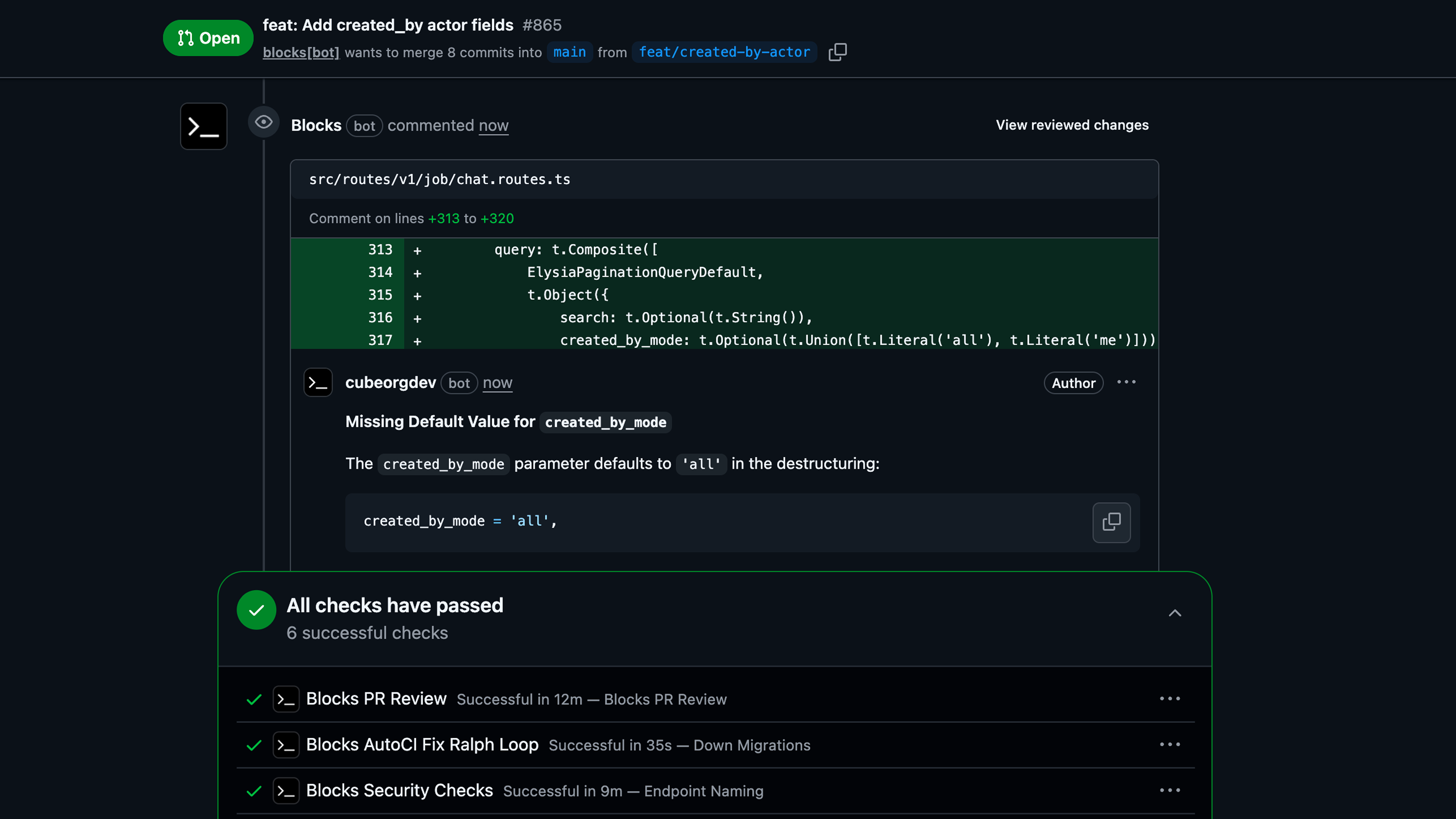
Interact with Blocks on GitHub by mentioning@blocks in any issue, PR, or PR review comment with your request. Manage issues, answer questions, review PRs, make changes, create tickets, and more.
Delegate your request to a specific agent by mentioning the agent keyword in a slash command. Example: /claude, /codex, /gemini, /kimi. If none are mentioned, the request will default to your default agent. To change it: Dashboard → Agents → Set as default agent.
What Blocks Can Do
Blocks can help you with a variety of tasks on GitHub:- Answer Questions: Ask Blocks about an issue or PR
- Update Issues: Request changes to an issue such as additional details with context from your codebase
- Create New Issues: Ask Blocks to create additional tickets based on your requirements
- Implementation: Ask Blocks to create a PR from an issue
- PR Review: Ask Blocks to review a PR. Optionally, include context for what to look out for
- Make Changes: Ask Blocks to make changes to an open PR
Making a Request
Simply mention@blocks in any GitHub issue, PR, or PR review comment followed by your request:
Session Context: Responding in a GitHub pull request review thread will continue in the same session, preserving all context from the conversation. Creating a new comment on an issue, PR, or PR file will create a fresh session with no prior context.
Plan Mode
Start a new session in Plan Mode to create an implementation plan before making changes:Plan Mode must be started with a new session and cannot be entered once implementation has begun.
Blocks Response Process
- Acknowledgment: Blocks will add 👀 (eye) emojis to indicate it has seen your message
- Dashboard Link: Blocks responds with a link to the dashboard where you can track progress
- Progress Updates: Blocks provides a realtime snippet about what it is currently working on
- Final Message: Blocks responds with a final message which summarizes what it did
Bot Invocations
By default, Blocks ignores mentions from GitHub bot users. If you want to allow bots to invoke Blocks and create sessions, enable Bot Invocations in Dashboard → Settings → GitHub.Best Practices
- Be Specific: Provide clear and detailed requests to get the best results
- Use Context: Reference specific issues, sections of the code, or requirements when relevant
- Check Progress: Use the dashboard link to monitor Blocks’ work on your request
- Follow Up: You can continue the conversation by mentioning
@blocksagain with additional questions or clarifications
Next Steps
New to Blocks? Check out the Getting Started guide to learn the basics. Learn more about:- Plan Mode for collaborative planning
- Skills for reusable prompts
- Multi-Repo Support for working across repositories